-
Mac
-
Windows PC
-
iPad
- Add Button
-
Yes
-
No
- Add Button
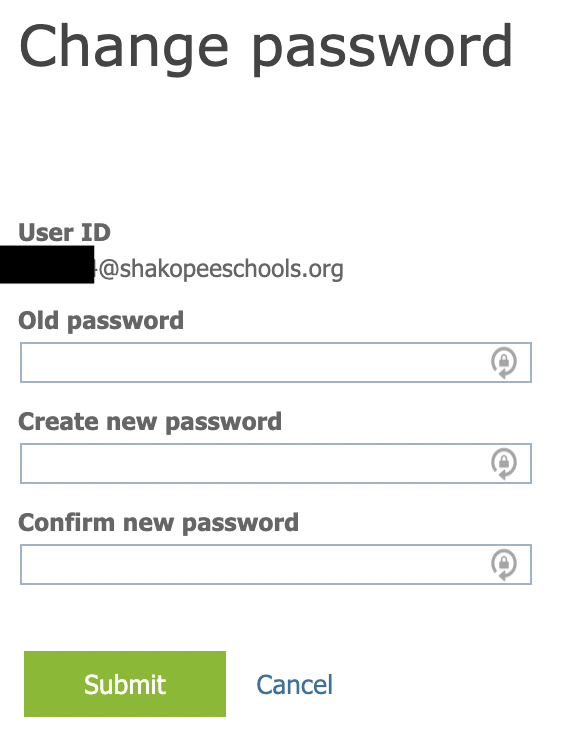
1. Browse to https://mysignins.microsoft.com/security-info/password/change
2. Log in with your email and password.
- Staff: username@shakopee.k12.mn.us
- Students: username@shakopeeschools.org
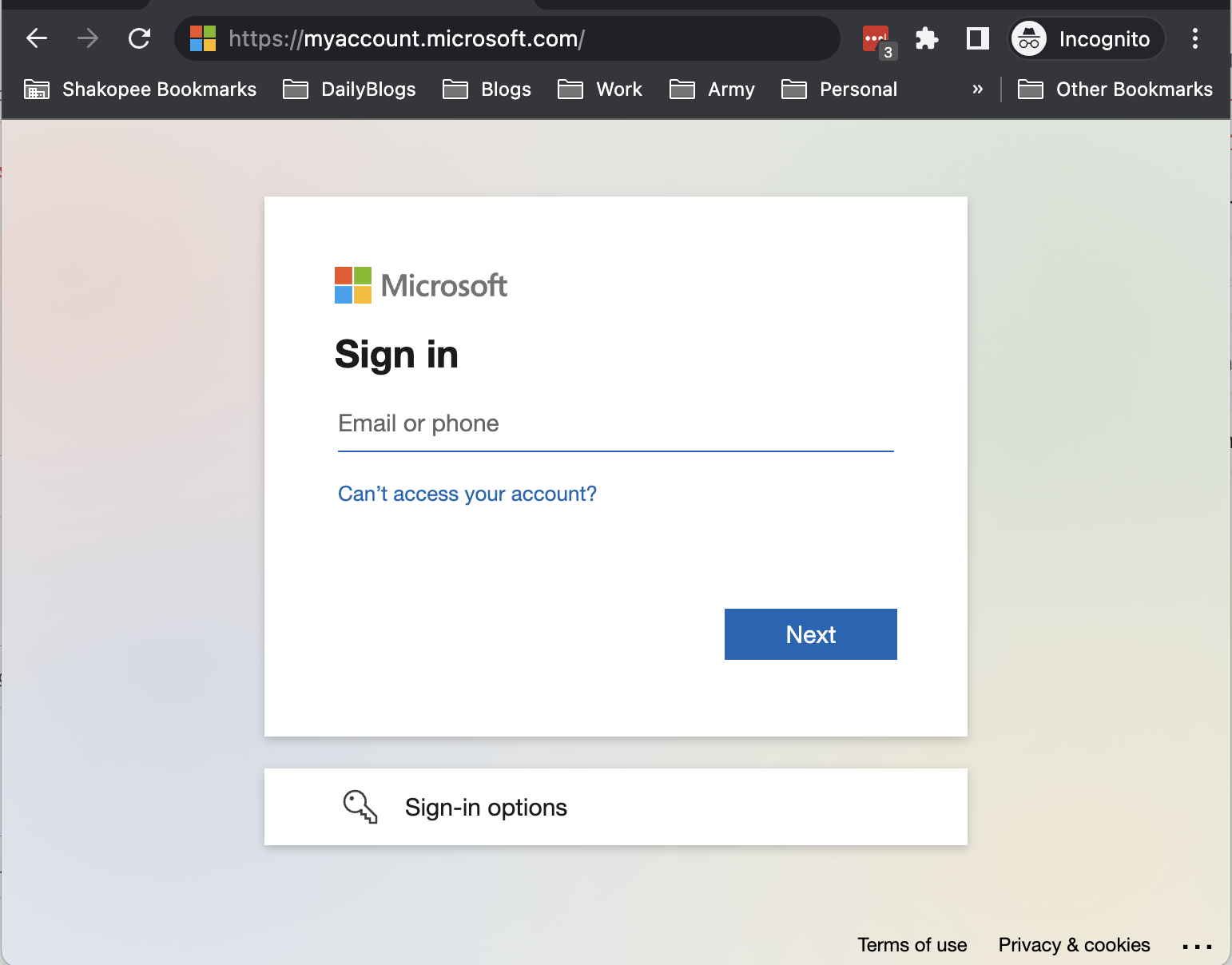
3. Set a new password. You will need to supply your current password.
If you don't know your current password contact the help desk at helpdesk@shakopee.k12.mn.us or 952-496-5100.

4. Passwords can take up to 5 minutes to sync to Google and Office 365 (staff email) after being changed. If your password doesn't work immediately after changing, wait a few minutes and try again.
5. Once a new password has been changed successfully, click the Key icon on your menu bar, and click Reconnect.

6. Enter your changed password first, and then your old password.

1. Browse to https://mysignins.microsoft.com/security-info/password/change
2. Log in with your email and password.
- Staff: username@shakopee.k12.mn.us
- Students: username@shakopeeschools.org
3. Set a new password. You will need to supply your current password.
If you don't know your current password contact the help desk at helpdesk@shakopee.k12.mn.us or 952-496-5100.
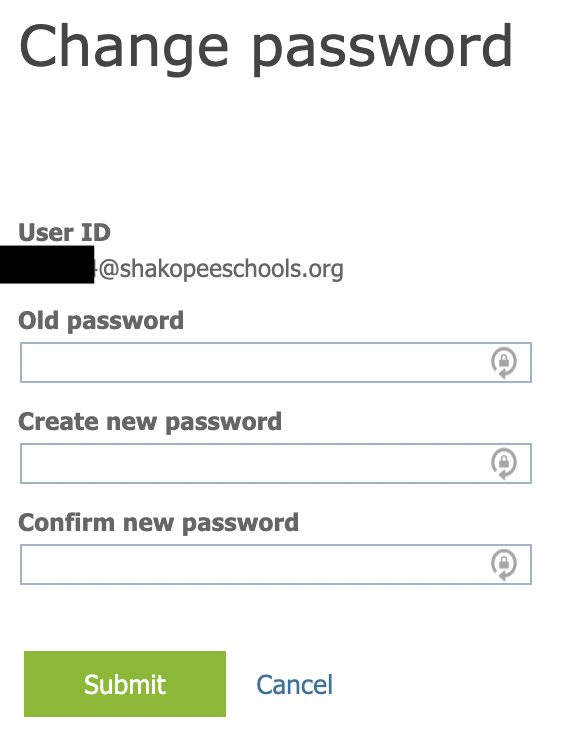
4. To sync your local Mac password, start by opening System Settings under the Apple logo at the top-left:

5. Select Users & Groups.

6. Select the i by your name and then Change...


7. Enter your old password and then enter the new password that you created on the Microsoft website.

-
Yes
-
No
- Add Button
1. Browse to https://mysignins.microsoft.com/security-info/password/change
2. Log in with your email and password.
- Staff: username@shakopee.k12.mn.us
- Students: username@shakopeeschools.org
3. Click "Change Password"
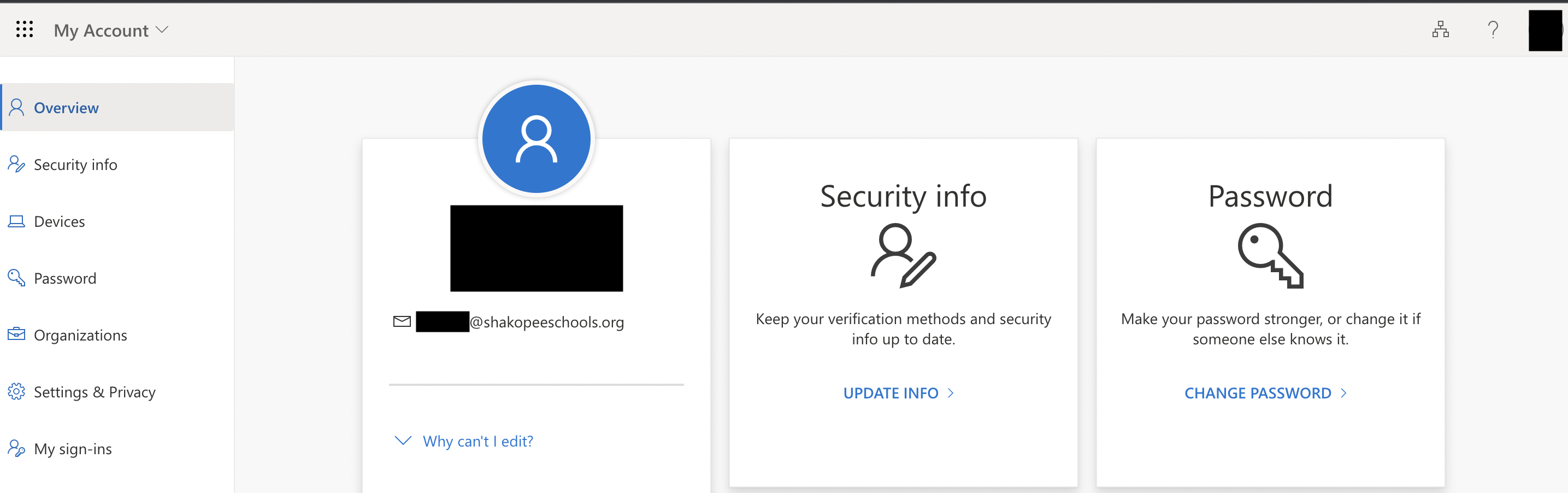
4. Set a new password. You will need to supply your current password.
If you don't know your current password contact the help desk at helpdesk@shakopee.k12.mn.us or 952-496-5100.
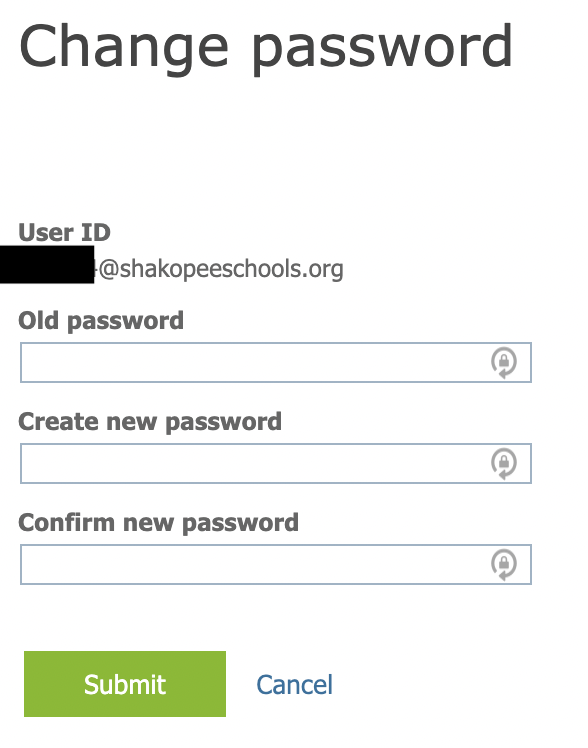
-
Yes
-
No
- Add Button
1. Browse to https://mysignins.microsoft.com/security-info/password/change
2. Log in with your email and password.
- Staff: username@shakopee.k12.mn.us
- Students: username@shakopeeschools.org
3. Click "Change Password"
4. Set a new password. You will need to supply your current password.
If you don't know your current password contact the help desk at helpdesk@shakopee.k12.mn.us or 952-496-5100.
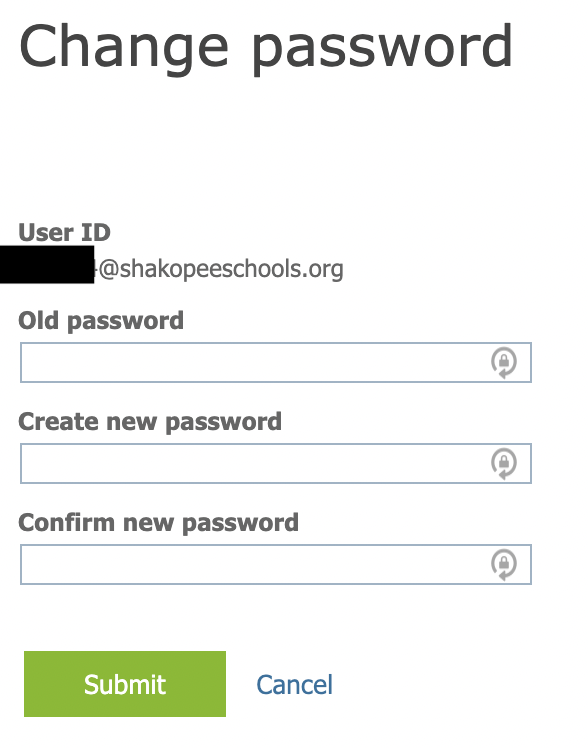
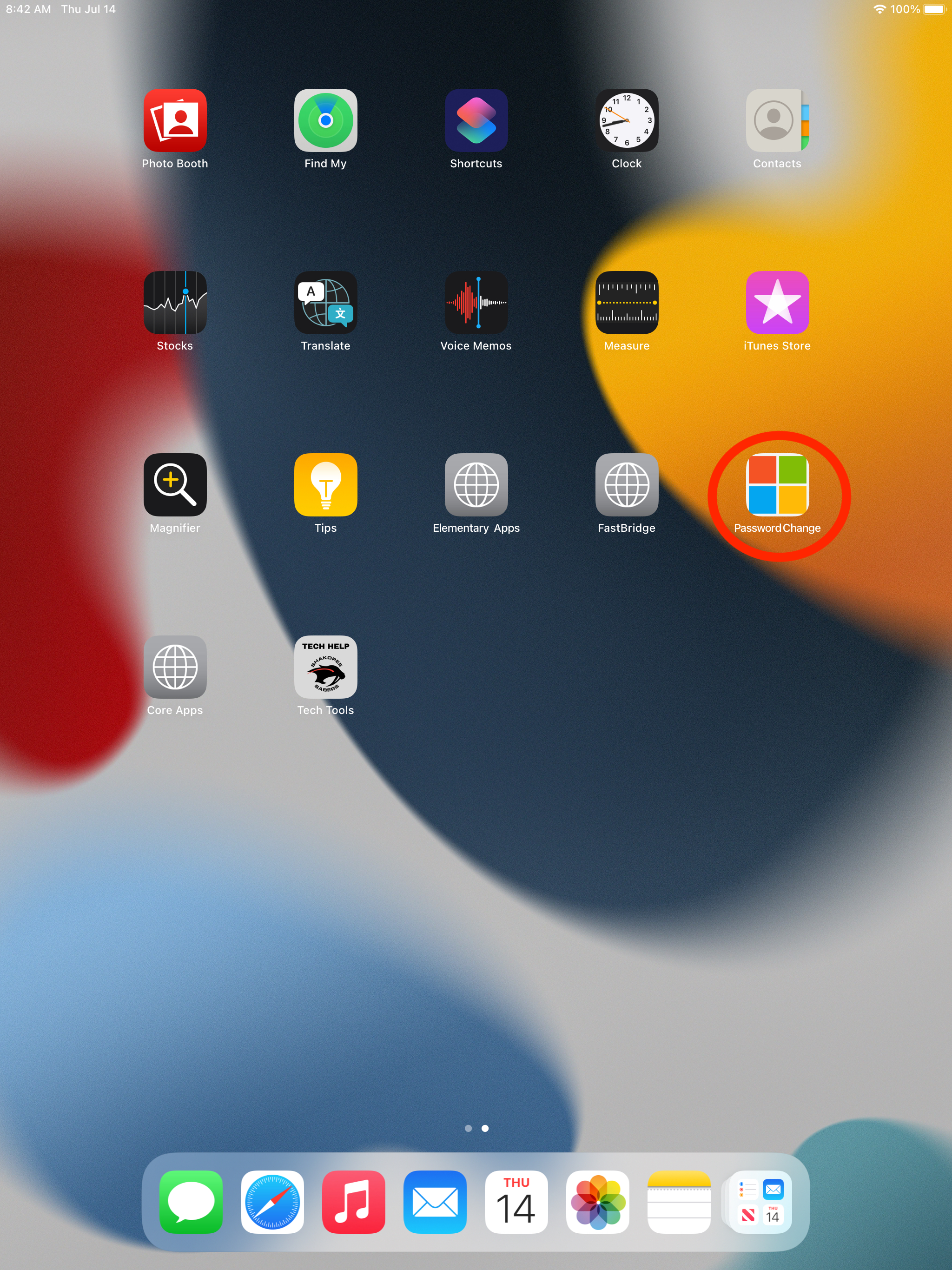
2. Log in with your email and password.
- Staff: username@shakopee.k12.mn.us
- Students: username@shakopeeschools.org
3. Click "Change Password"
4. Set a new password. You will need to supply your current password.
If you don't know your current password contact the help desk at helpdesk@shakopee.k12.mn.us or 952-496-5100.