
Overview
Account Security measures are becoming more and more important in every facet of ones digital presence.
Educational institutes are being targeted more and more mostly because of the following:
- Large amounts of data (student\parent\staff)
- Many possible ways to access part of all data
- Limited resources\training to prevent attacks\compromises
As result many insurance companies that provide Cyber Insurance are requiring systems to be protected by multi-factor \ 2-factor authentication (MFA\2FA).
You may have encountered MFA when your online bank texts or emails you a code to enter for verification.
What is MFA?
What is Multi-Factor Authentication (MFA)
Multi-Factor Authentication (MFA) is the process of using items from different sources to validate one's identity or account. Common sources include:
- Something you know: like a password or Personal Identification Number (PIN);
- Something you have: like a smart card, mobile token, or hardware token; and,
- Some form of biometric factor (e.g., fingerprint, palm print, or voice recognition).
Analogy Time
Imagine you have a safe at home with lots of valuable possessions inside. The safe is protected with a code (something you know), which provides one layer of security. But let’s say someone gets a hold of that code. They can use it to open the safe.
Let’s say that in addition to a code, you also needed another element to open the safe – maybe a key (something you have) or fingerprint scanner (biometrics) . The fact that you need those additional steps to open the safe makes it more difficult for anyone else to open it.
Students / Parents
Not on road map
Currently there is no plan to force MFA on student\parent accounts.
Staff / Contractors
Microsoft ending support for Phone (Call/Txt) Feb. 1, 2027.
Microsoft has notified clients (ie District) that they will be ending support of Phone (call/txt) MFA option coming February 1, 2027. Starting in September 2026.
Authenticator App users
If choose to use an authenticator app, any action that breaks/removes the registration between authenticator app and Microsoft will require it to be re-registered (contact Helpdesk to clear invalid registration).
- New phone
- Removed authenticator app or app in broken state.
Multiple Methods
Microsoft does allow setup of multiple methods in event one is unavailable/invalid.
District currently approves the following methods:
- Authenticator App (ex. Microsoft Authenticator app)
- Hardware/Software Token (FOB)
First Time MFA Users
To properly use MFA you will need to have at least one sign-in method setup.
-
Log In:
- Go to https://myaccount.microsoft.com/ and sign in with your Outlook email and password or
- visit MFA Portal either via 365 - MFA Portal
 located in Employee Self Service of ClassLink LaunchPad or
 - Visit http://aka.ms/mfasetup directly.
- The Security Prompt: A screen will appear stating "More information required." Click Next to proceed.
- Choose Your Method: By default, Microsoft will prompt you to use the Microsoft Authenticator app. Leave this screen open on your computer.
- Download the App: Open the App Store (iPhone) or Google Play Store (Android) and install the official Microsoft Authenticator app (recommended). An alternative is the Google Authenticator app. (iPhone/Android)
Microsoft Authenticator

Google Authenticator

- Open & Accept: Launch the app and accept any privacy agreements.
- Add Account: Tap Add account (or the + icon in the top right corner).
- Select Account Type: Choose Work or school account, then select Scan a QR code. (Grant the app permission to access your camera if prompted).
- Scan the Code: On your computer screen, click Next until a square QR Code appears. Point your phone camera at your computer screen to scan it.
- Test the Link: Once scanned, click Next on your computer. Microsoft will send a test notification to your phone.
- Number Matching: Your computer screen will display a 2-digit number. Type that exact number into the prompt on your phone app and tap Approve.
- Finish Setup: Once verified, click Next and then Done on your computer screen. You are now securely logged into your Outlook email.
Transitioning from SMS (Texting) or Adding Microsoft Authenticator App as MFA?
Here is a video guide on how to switch from SMS to an authenticator app.
Follow this if you are currently using SMS and want to transition to Microsoft Authenticator app.
-
Log In:
- Go to https://myaccount.microsoft.com/ and sign in with your Outlook email and password or
- visit MFA Portal either via 365 - MFA Portal located in Employee Self Service of ClassLink LaunchPad or
- Visit http://aka.ms/mfasetup directly.
- Add “Sign-In Method”
- Install “Microsoft Authenticator” app if you don't have it already.
- Select “Microsoft Authenticator” > Scan QR code > Enter code generated from your app. Setup complete.

- Once confirmed that Authenticator app is added as MFA method. Please make sure to switch default method to Authenticator app from SMS if not already.
- Security Info > notification change


Transitioning from SMS (Texting) or Adding Hardware Token (Fob) as MFA?
If you prefer not to use a mobile app, the district will provide a physical hardware token upon request. If you require a hardware token, submit a request via the Helpdesk or emailing helpdesk@shakopee.k12.mn.us.
MFA Fob Usage
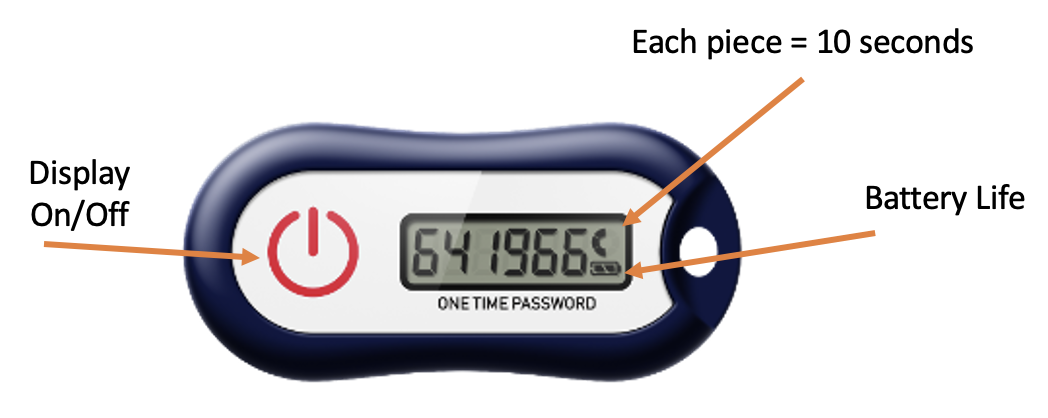
When prompted for MFA code during account sign in press display button on your issued FOB to display the 6 digit code.
Code is good for 60 seconds. Doughnut in right indicates remaining life of the code, each section is 10 seconds.
District MFA Campaign - User Experience
User experience - Authenticator app campaign
When you're targeted for an Authenticator registration campaign, you experience the following flow:
- You need to complete MFA.
- If you're enabled for Authenticator push notifications and it isn't set up, you're prompted to set up Authenticator to improve your sign-in experience.
Other security features, such as passwordless sign-in, self-service password reset, or security defaults, might also prompt you to set up an authentication method.

- Select Next and step through Authenticator setup.
- If you don't want to set up Authenticator, select Skip for now to snooze the prompt for the number of days configured by your administrator. Users with free and trial subscriptions can snooze the prompt up to three times.

Vendors
Implementing
Goal is by mid-school year ‘23-’24 all vendor accounts will be MFA'd
FAQ
How can I verify / view my setup MFA?

Viewing your configured MFA can be done through Microsoft Account > Security Info. We have added an app in Self Service Folder of ClassLink LaunchPad for quick access.
When you access Security Info page Microsoft will force MFA check, this will allow you to confirm your current setup is working. If assistance is needed reach out to Helpdesk for support.
I deleted the authenticator app and now unable to verify.
You will need to contact Helpdesk to:
- Remove invalid authenticator registration and allow you to re-register authenticator app.
- Issue temp pass code
I got a new phone and now authenticator isn't valid.
You will need to contact Helpdesk to:
- Remove invalid authenticator registration and allow you to re-register authenticator app.
- Issue temp pass code
I am not in building and cannot get confirmation call on desk phone.
You will need to contact Helpdesk to either:
- Issue temp pass code have either remove
- Add additional phone #
Can I use more then 1 factor?
Yes, you can log into http://aka.ms/mfasetup and configure additional MFA factors in event one is unavailable/invalid (Reinstalling Authenticator App / New Phone).
Once signed in click 
Select desired method (your list might very)
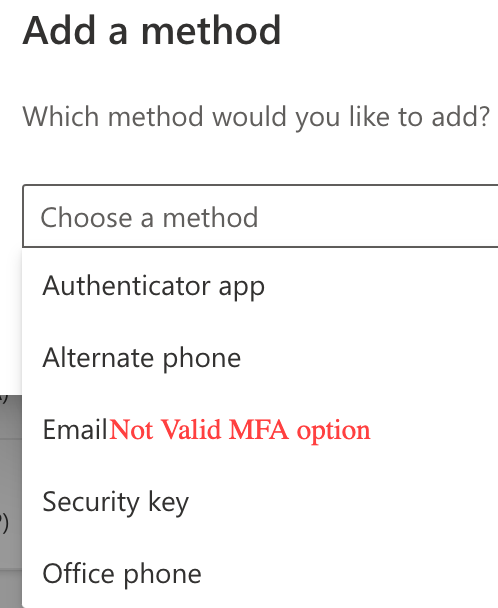
Complete steps on screen to complete setup.
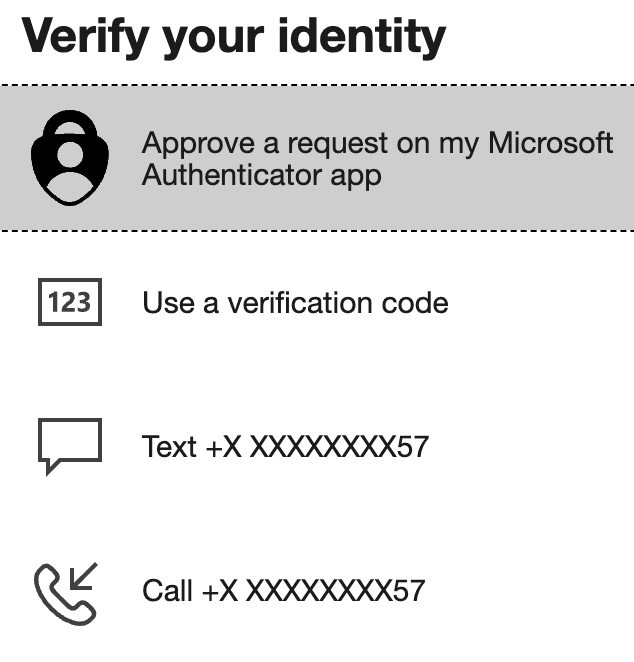
To use alternate method
Look for option that either states unable to use Authenticator app or get a code a different way.
Some Examples:
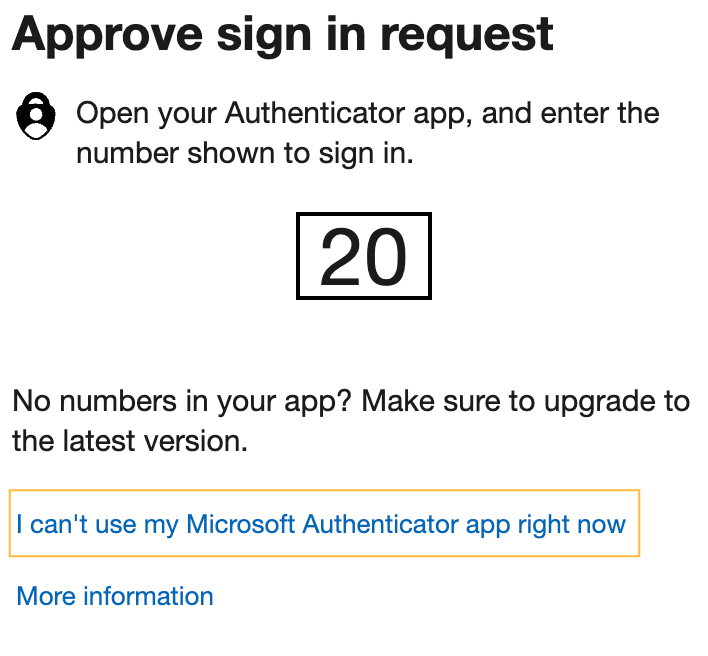
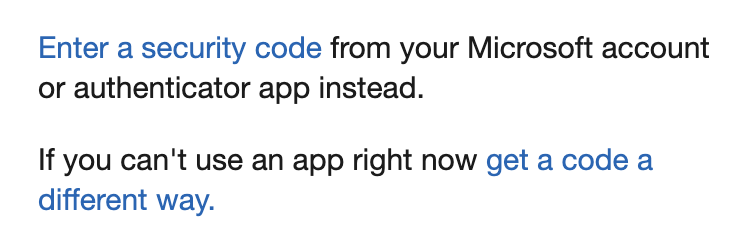
Select the alternate method available to you.
I am getting a new phone, what should I do?
Great question.
If using call or text no change will be needed.
If using the Authenticator App recommend setting up additional factor using the call or text as app will break until re-configured on new phone (requires Technology System Admins to clear current MFA). Check out the "Can I use more then 1 factor?" for details on setting up additional options.