
Peer Review in Canvas allows you to foster a collaborative learning environment by enabling students to provide constructive feedback on their classmates' submissions. You can choose to assign reviews manually or automatically after the initial due date. The process can be made anonymous, hiding student names from one another. Teachers then have the ability to monitor the quality of the feedback in SpeedGrader as well as grade the final submission for the assignment.
You can use Peer Review in Canvas Assignments and Discussions. View the resources below to learn more.
Peer Review on MacBooks
- Create or Edit an Assignment and add it to a Module.
Enable Peer Reviews: Scroll down to the submission settings. Check the box for Peer Reviews.
2. Configure Review Details:
Automatically Assign Reviews: Select this to let Canvas randomly assign a set number of reviews per student after the deadline passes.
Manually Assign Reviews: Choose this if you want to pair specific students together.
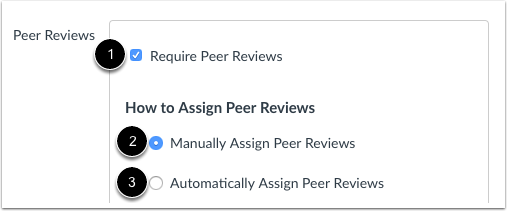
3. Set Due Date: Select a date for the reviews to be completed by (this should be after the submission deadline).
Anonymize (Optional): Check Peer Reviews Appear Anonymously to hide student names from each other.

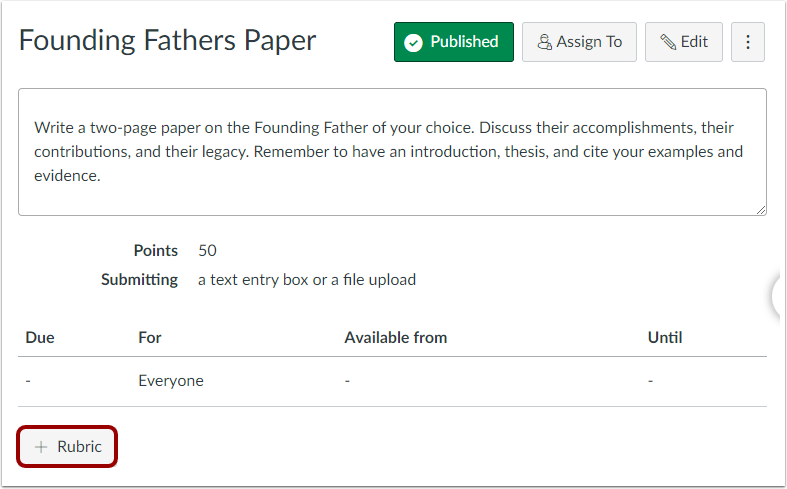
4. Add a Rubric (Highly Recommended): Click + Rubric to create grading criteria. This ensures students know exactly what to look for when reviewing their peers' work.
5. Save and Publish: Click Save to finalize settings, and Publish when you are ready for students to see it.
Peer Review on iPads
Peer Review does work pretty much the same as it does on a MacBook, but students need to sign into Canvas via Safari to complete them. Watch the video below to learn how.
Additional Resources: