
 Canvas is Shakopee Schools Learning Management System (LMS) used in Grades 6 -12.
Canvas helps families stay informed by providing access to assignments, in-progress grades, and direct communication with teachers.
Canvas for Families
Account Setup
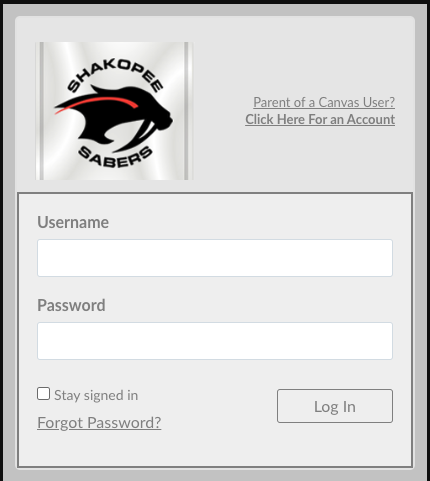
Download the Canvas Parent App on your phone or browse to https://shakopee.instructure.com/Click Forgot Password?

Enter Username > Request Password

Open “Canvas - Shakopee Schools <notifications@instructure.com>” email
Click link to set a new password

Enter New Password > Confirm Password > Update Password

Delete
App Account Reset
Anyone who previously had a Canvas observer account may find that the the Canvas app is holding on to your previous login information and will not allow you to log in with your new account. Canvas recommends resetting or clearing the cache for the app. Detailed instructions can be found in these Canvas help articles:
How do I reset my cache in the Canvas Parent app on my iOS device?
How do I clear my cache in the Parent app on my Android device?
Account Troubleshooting
Not sure of your username or not receiving a link to change password? Send us a help ticket at parenthelp@shakopee.k12.mn.us letting us know what you need; it is also helpful to include the name of a student(s) you’d expect to see in Canvas so we can confirm your information.
Want to learn more about using your Canvas account? Click here for more information.
DeleteCanvas Web
Customize Email Notifications
You may be receiving numerous Canvas notification emails. Once you have an account, be sure to edit your notification settings.
We recommend setting the following notifications to either notify right away, daily summary, or weekly summary. Turn off the rest. Please note, you cannot change your email notification settings on the Canvas Parent app. You must use the web.
- Announcements
- Grading
- Submission Comment
- Conversations (all)
- Global Announcements
Notifications can be found in your account settings in Canvas as seen in Canvas Web Navigation
DeleteCanvas Web Navigation
There are 5 areas of interest for this page, as shown in the picture below.

- Settings: You can customize your notification preferences, among other things, in your personal settings. Your settings are always available from any Canvas page in the upper left-hand corner if you click Account. Then click on Notifications. Once in Notifications, you can change how often you are notified about aspects of your children’s courses. Hover over notification box to change their frequency.
- Courses: This is where you view all of the individual courses for your child.
- Calendar: The Calendar shows a view of all course due dates, including ungraded updates of in class work.
- Coming Up: This is a notification center for a quick view of upcoming items and events.
- Grades: This button will show grades for each course. You can then click on each course to view more details about your student's grade and see whether students have submitted their work.
Canvas Parent App
View Student Courses and Grades
Courses: View courses that are currently **active for your student. Grades will also display for the course here. Tapping on a course will display more grading details and the home page for the course. Tapping on an assignment will allow you to see directions for the assignment, whether it was submitted, and set an alert to remind yourself to check in with your student.
**Courses will be Active in Canvas after schedules are assigned in late august through the school year.

View Student Assignments and Events
Calendar: Assignments and events can be viewed by course or week. Parents can set reminders for a specific assignment or event, which are sent to the mobile devices and push notifications

Set Alerts for Student Activity
Alerts: They indicate if assignments are missing, have received a grade, etc.

Select Student
Select Student: Switch between multiple students.

User Menu
User Menu: View Canvas Inbox, Manage Students and Alerts, View and Manage Settings, Get Help with the App

Password
Change/Reset your password
- Go to shakopee.instructure.com on a computer or mobile browser. You cannot change your password in the Canvas Parent mobile app. Click on “Forgot Password” to receive an email to reset it or sign in to change it.
Account > Settings

Edit Settings (Far Right)

Click the Change Password checkbox
Enter your Old Password > New password/Confirm Password > Click Update Settings

Visit Canvas for Video on Password Reset
DeleteSupporting your Student
Now that you have a Canvas account, consider how you will monitor your student's progress. A few recommendations are:
- Designate a day each week that you will review Canvas with your student.
- Review the previous week to see what assignments are missing.
- Dig into classes with lower grades to see what could be resubmitted to earn a better grade.
- Use the calendar to look ahead to next week to plan ahead for upcoming deadlines.
- Email teachers if you have questions about assignments or grades.
Tech Support
If a parent or guardian is having technical issues, please email parenthelp@shakopee.k12.mn.us or call (952) 697-8701. If you have questions about the content of a course such as an assignment or grade, please email the teacher of that course.
Delete